
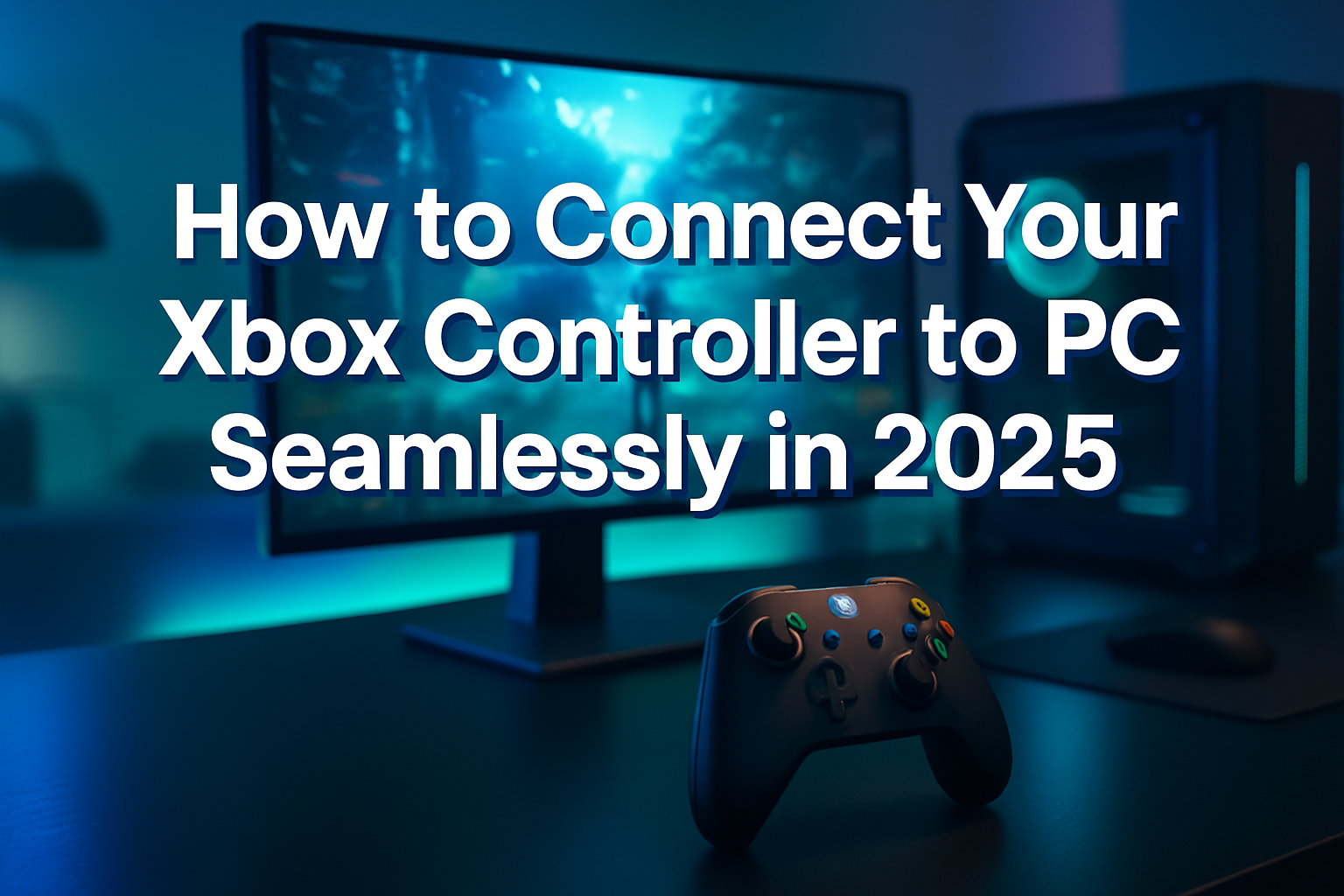
Gaming on a PC offers unparalleled flexibility and access to a vast library of titles, but sometimes the precision of a mouse and keyboard just doesn’t capture the intuitive feel of a console controller. For many, the Xbox controller stands out as the gold standard for its ergonomic design, robust build quality, and seamless integration with Windows. If you’re looking to elevate your PC gaming experience in 2025 by connecting your Xbox controller, you’ve come to the right place. This guide will walk you through every method, ensuring you can dive into your favorite games with comfort and control.
Connecting an Xbox controller to your PC unlocks a new dimension of gameplay, making action-adventure, sports, and fighting games feel more natural and immersive. Whether you prefer a wired connection for reliability, wireless for freedom, or Bluetooth for convenience, we’ll cover the steps to get you up and running smoothly.
Key Takeaways
- Multiple Connection Methods: Xbox controllers can be connected to a PC via USB cable, the official Xbox Wireless Adapter, or Bluetooth, offering flexibility for different setups and controller types.
- Compatibility Varies: Specific methods (e.g., Bluetooth) might only be available for newer Xbox controllers (Xbox One S/X, Series X/S) and Windows versions (Windows 10/11).
- Drivers are Often Automatic: Windows typically installs necessary drivers automatically, but the Xbox Accessories app can help with firmware updates and button remapping.
- Troubleshooting is Key: Basic troubleshooting like restarting devices, checking cables, and updating drivers can resolve most connection issues.
- Enhanced Gaming Experience: Using an Xbox controller can significantly improve the experience for many PC game genres, offering more intuitive controls than a keyboard and mouse.
Understanding Your Xbox Controller and PC Compatibility
Before diving into the “how to connect xbox controller to pc” methods, it’s crucial to identify which Xbox controller you possess and the operating system your PC runs on. This knowledge will dictate the most suitable connection options available to you.
Identifying Your Xbox Controller Model
Microsoft has released several iterations of Xbox controllers, each with slightly different features and connectivity capabilities.
- Original Xbox One Controller: These often require a wired connection or the Xbox Wireless Adapter. Early models lack built-in Bluetooth.
- Xbox One S/X Controller: These controllers feature built-in Bluetooth connectivity, identifiable by the plastic around the Xbox button being part of the controller’s main body, not a separate piece that extends to the bumpers.
- Xbox Series X/S Controller: The latest generation controllers retain Bluetooth connectivity, offering improved latency and dynamic latency input (DLI) when used wirelessly with compatible devices. They also feature a dedicated Share button.
- Xbox Elite Wireless Controller (Series 1 & 2): Both Elite controllers support wired connections, and the Elite Series 2 includes Bluetooth, similar to the Xbox One S/X and Series X/S controllers. The Elite Series 1 requires the Xbox Wireless Adapter for wireless PC play.
PC Operating System Requirements
Most modern Xbox controllers are designed for seamless integration with Windows.
- Windows 10 and Windows 11: These operating systems offer the best compatibility, with automatic driver installation and native support for Bluetooth and the Xbox Wireless Adapter.
- Older Windows Versions (Windows 7/8.1): While some controllers might work via USB or the Wireless Adapter, Bluetooth support can be less reliable or require additional steps. It’s highly recommended to use Windows 10 or 11 for the best experience.
Method 1: Connecting via USB Cable
The simplest and most reliable way to connect your Xbox controller to your PC is through a USB cable. This method offers a stable connection, eliminates latency, and ensures your controller is always powered.
What You’ll Need
- Xbox Controller: Any Xbox One, Xbox Series X/S, or Elite controller.
- Compatible USB Cable:
- Xbox One/Elite Series 1: Micro-USB to USB-A cable.
- Xbox Series X/S/Elite Series 2: USB-C to USB-A cable.
- PC with an available USB port.
Step-by-Step Guide
- Locate the USB Port on Your Controller: For older Xbox One controllers and Elite Series 1, this is a Micro-USB port at the top front. For Xbox Series X/S and Elite Series 2 controllers, it’s a USB-C port.
- Connect the USB Cable: Plug the smaller end of the USB cable into your Xbox controller.
- Connect to Your PC: Plug the larger USB-A end of the cable into an available USB port on your PC.
- Wait for Driver Installation: Your PC should automatically detect the controller and install the necessary drivers. You’ll usually see a notification indicating “Device setup complete” or similar. The Xbox button on your controller will light up solid, indicating it’s connected and ready to use.
Advantages of Wired Connection
- No Latency: Ideal for competitive gaming where every millisecond counts.
- No Batteries Required: Your controller is powered directly by your PC, so you don’t need to worry about battery life.
- Plug-and-Play: Generally the most straightforward method with minimal setup.
- Reliability: Less prone to interference compared to wireless connections.
This method is often the go-to for those who prioritize stability and ease of use when asking “how to connect xbox controller to pc.”
Method 2: Connecting with the Xbox Wireless Adapter
For a dedicated, low-latency wireless experience, the official Xbox Wireless Adapter for Windows is an excellent choice. This adapter uses Microsoft’s proprietary wireless protocol, offering a connection quality similar to that of an Xbox console.
What You’ll Need
- Xbox Wireless Controller: Any Xbox One, Xbox Series X/S, or Elite controller.
- Xbox Wireless Adapter for Windows: This small USB dongle is specifically designed for Xbox controllers.
- PC with an available USB port.
Step-by-Step Guide
- Plug in the Wireless Adapter: Insert the Xbox Wireless Adapter into an available USB port on your PC. Windows 10 and 11 will typically install the necessary drivers automatically.
- Turn On Your Xbox Controller: Press and hold the Xbox button on your controller until it lights up.
- Activate Pairing Mode on Controller: Press and hold the small Pairing button (located on the top edge, near the USB port) on your Xbox controller for about three seconds. The Xbox button will start flashing rapidly.
- Activate Pairing Mode on Adapter: Press the small pairing button on the Xbox Wireless Adapter. The light on the adapter will flash.
- Wait for Connection: The Xbox button on your controller will turn solid, and the light on the adapter will stop flashing when the connection is established. You are now ready to play wirelessly!
Why Choose the Xbox Wireless Adapter?
- Low Latency: Offers a highly responsive gaming experience, often superior to standard Bluetooth connections.
- Connect Multiple Controllers: A single adapter can connect up to eight Xbox controllers simultaneously (though actual performance with many controllers might vary).
- Broader Compatibility: Works with all Xbox One and Xbox Series X/S controllers, including older models that lack Bluetooth.
- Seamless Integration: Designed by Microsoft for their controllers, ensuring optimal performance.
When considering “how to connect xbox controller to pc” wirelessly with minimal fuss and maximum performance, the Xbox Wireless Adapter is a premium solution. For issues with peripherals or other tech, remember that services like those at https://scotcomp.com/xbox-repairs-edinburgh-leith-professional-services/ can provide professional assistance.
Related Posts:

Method 3: Connecting via Bluetooth
Modern Xbox controllers (Xbox One S/X, Xbox Series X/S, and Elite Series 2) come equipped with Bluetooth, offering a convenient wireless connection without the need for a proprietary adapter.
What You’ll Need
- Bluetooth-enabled Xbox Controller: Xbox One S/X, Xbox Series X/S, or Elite Series 2.
- PC with built-in Bluetooth capability or a Bluetooth adapter.
- Windows 10 or Windows 11.
Step-by-Step Guide
- Ensure PC Bluetooth is On:
- Go to Settings > Devices (or Bluetooth & devices in Windows 11) > Bluetooth & other devices.
- Toggle the Bluetooth switch to On.
- Put Your Xbox Controller in Pairing Mode:
- Turn on your Xbox controller by pressing the Xbox button.
- Press and hold the small Pairing button (on the top edge) for about three seconds until the Xbox button starts flashing rapidly.
- Add the Controller to Your PC:
- On your PC, in the Bluetooth & other devices settings, click Add Bluetooth or other device.
- Select Bluetooth.
- Your PC will start searching for devices. Look for “Xbox Wireless Controller” in the list and click on it.
- Once connected, the Xbox button on your controller will stop flashing and remain solid.
Bluetooth Advantages and Considerations
- No Additional Hardware: Doesn’t require a specific dongle if your PC has built-in Bluetooth, reducing clutter.
- Versatile: Can be used with other Bluetooth-enabled devices.
- Potential Latency: While generally good for casual gaming, Bluetooth can sometimes introduce a slight input lag compared to wired or the Xbox Wireless Adapter.
- Battery Drain: Wireless connections, including Bluetooth, will consume your controller’s battery.
Connecting an Xbox controller to PC via Bluetooth is a popular choice for its simplicity and the ability to avoid extra hardware.
Optimizing Your Controller Experience: Drivers and Software
Once you know “how to connect xbox controller to pc,” ensuring it performs optimally involves keeping its firmware up-to-date and potentially customizing settings.
Xbox Accessories App
The Xbox Accessories app, available for free from the Microsoft Store, is an invaluable tool for any Xbox controller user on PC.
- Firmware Updates: This app allows you to check for and install the latest firmware updates for your controller. Keeping firmware updated can improve performance, fix bugs, and ensure compatibility with new games and Windows versions.
- Button Mapping and Customization: For controllers like the Xbox Elite Wireless Controller, the app provides extensive options to remap buttons, adjust trigger sensitivity, modify stick curves, and create custom profiles for different games. Even standard controllers allow for basic button remapping.
- Controller Diagnostics: You can use the app to test button functionality and stick input.
How to Update Firmware:
- Connect your Xbox controller to your PC using a USB cable.
- Open the Xbox Accessories app.
- If an update is available, you’ll see a notification. Click on it to begin the update process. Do not disconnect your controller during an update.
Driver Management
While Windows typically handles driver installation automatically when you connect an Xbox controller via USB or the Wireless Adapter, it’s good to know where to check if issues arise.
- Device Manager: You can access Device Manager by right-clicking the Start button and selecting it. Under “Xbox Peripherals” or “Human Interface Devices,” you should see your Xbox controller listed. If there’s a yellow exclamation mark, it indicates a driver issue. You can try right-clicking and selecting “Update driver” or “Uninstall device” and then reconnecting the controller to force a fresh install.
Keeping your system and controller software current is a crucial step in maintaining a smooth gaming experience and ensuring your “how to connect xbox controller to pc” efforts are successful. For more general insights into technology and its benefits, explore resources like http://itechit.co.uk/how-technology-has-helped-society-key-benefits-and-examples/.
Troubleshooting Common Connection Issues
Even with clear instructions on “how to connect xbox controller to pc,” you might encounter occasional hiccups. Here are some common problems and their solutions:
Controller Not Connecting or Disconnecting Randomly
- Check Cables: For wired connections, try a different USB port or cable. Ensure the cable is fully seated in both the controller and PC.
- Battery Levels: For wireless connections, ensure your controller batteries are not low. Replace or recharge them.
- Interference: Wireless connections (Bluetooth, Xbox Wireless) can be susceptible to interference from other wireless devices (Wi-Fi routers, microwaves, other Bluetooth devices). Try moving closer to your PC or reducing other wireless activity.
- Restart Everything: A simple restart of your PC and controller can often resolve temporary glitches.
- Update Drivers/Firmware: Use the Xbox Accessories app to ensure your controller firmware is up-to-date. Also, check for Windows updates, as these often include driver improvements.
- Re-pair Controller: If using Bluetooth or the Wireless Adapter, try unpairing and then re-pairing the controller.
Input Lag or Unresponsive Buttons
- Wired Connection: If experiencing lag wirelessly, switch to a wired connection to rule out wireless interference or latency issues.
- Distance: For wireless, ensure you’re within a reasonable range of your PC (typically within 20 feet/6 meters for Bluetooth, less for optimal performance).
- Controller Firmware: Outdated firmware can sometimes cause performance issues. Update it via the Xbox Accessories app.
- Game-Specific Issues: Some games might have specific controller configuration requirements or bugs. Check game forums or settings.
- Controller Damage: If buttons are unresponsive, the controller itself might be physically damaged.
Controller Not Showing Up in Game
- Game Support: Not all PC games natively support controllers. Check the game’s settings or specifications.
- Steam Big Picture Mode: If playing on Steam, try launching the game through Steam’s Big Picture Mode, which has excellent controller support and configuration options.
- Controller Settings in Game: Many games have a “Controls” or “Controller” section in their settings where you might need to enable or configure controller input.
- Other Input Devices: Ensure other input devices (like a joystick or another controller) aren’t conflicting with your Xbox controller.
By systematically going through these troubleshooting steps, you can typically resolve most issues you encounter after learning “how to connect xbox controller to pc.”
Xbox Controller vs. Keyboard & Mouse: Which is Best for PC Gaming?
The debate between using an Xbox controller and a keyboard and mouse for PC gaming is a long-standing one, with valid arguments for both. The “best” choice often depends on the game genre and personal preference.
Advantages of Xbox Controller
- Ergonomics and Comfort: Controllers are designed to fit naturally in your hands, making them comfortable for long gaming sessions, especially for action-oriented games.
- Intuitive for Certain Genres: For fighting games, racing games, sports simulations, and platformers, the analog sticks and triggers often provide a more immersive and intuitive experience.
- Analog Input: Analog sticks allow for precise, variable movement speed and camera control, while analog triggers offer nuanced control over acceleration, braking, or aiming.
- Vibration Feedback: Haptic feedback enhances immersion by providing tactile responses to in-game actions.
- Couch Gaming: Perfect for playing on a larger screen from the comfort of your couch.
Advantages of Keyboard & Mouse
- Precision and Speed: The mouse offers unparalleled precision for aiming in first-person shooters (FPS) and real-time strategy (RTS) games, allowing for quick, accurate movements.
- More Inputs/Hotkeys: Keyboards provide a vast array of keys, allowing for more hotkeys and complex command inputs, crucial for games with many abilities or actions (e.g., MMOs, RTS).
- Text Chat: Easier to type messages to teammates or opponents.
- Free Look/Aim: The mouse allows for quick and unrestrained camera movement and aiming, giving a significant advantage in competitive titles.
- Productivity: The same tools used for gaming are also used for general PC use, reducing the need to switch input methods.
Making the Right Choice
Ultimately, the decision of “how to connect xbox controller to pc” for gaming versus sticking with keyboard and mouse boils down to:
- Game Genre: For fast-paced shooters or complex strategy games, keyboard and mouse usually win. For immersive action-adventures, sports, or fighting games, a controller often feels more natural.
- Personal Preference: Many gamers simply prefer the feel and comfort of one input method over the other.
- Accessibility: Some players might find a controller more accessible due to physical limitations or comfort issues with keyboard and mouse.
It’s not uncommon for PC gamers to switch between both, depending on the game they’re playing, highlighting the flexibility that PC gaming offers in 2025.
Conclusion: Elevating Your PC Gaming in 2025
Connecting an Xbox controller to your PC is a straightforward process that can significantly enhance your gaming experience in 2025, especially for genres that benefit from tactile, analog controls. Whether you opt for the simplicity of a wired USB connection, the dedicated performance of the Xbox Wireless Adapter, or the convenience of Bluetooth, there’s a method perfectly suited to your needs and controller type.
Remember to identify your controller model and PC’s operating system to choose the best connection path. Leverage the Xbox Accessories app for firmware updates and customization, ensuring your controller always performs at its peak. Should you encounter any issues, a systematic approach to troubleshooting will quickly get you back in the game.
By mastering “how to connect xbox controller to pc,” you unlock a new realm of immersive gameplay, blending the best of console comfort with the power and versatility of PC gaming. Dive in, experiment with different games, and rediscover your favorite titles with the familiar feel of an Xbox controller in your hands. Happy gaming!
Interactive Guide: Connect Your Xbox Controller to PC
How To Connect an Xbox Controller to PC (Wired USB)
You’ll need your Xbox controller and the appropriate USB cable. For Xbox Series X|S controllers, use a USB-C to USB-A cable. For Xbox One controllers, use a Micro-USB to USB-A cable.
Plug the smaller end of the USB cable into the port on the front top of your Xbox controller.
Plug the larger end of the USB cable into an available USB-A port on your PC.
Windows 10/11 should automatically detect the controller and install the necessary drivers. This usually takes a few seconds. The Xbox button on your controller will light up once connected.
Your controller is now ready to use. Launch your favorite games and enjoy the enhanced experience.
Frequently Asked Questions (FAQ)
No, not all. Xbox Series X|S controllers and newer Xbox One controllers (those with the plastic around the Xbox button integrated with the controller face) support Bluetooth. Older Xbox One controllers and Xbox 360 controllers do not support Bluetooth and require a wired connection or a specific wireless adapter.
The Xbox Wireless Adapter is a dedicated USB dongle that provides a proprietary, low-latency wireless connection for Xbox controllers to your PC. It offers a more stable connection than Bluetooth and supports features like headset audio directly through the controller. It’s ideal for all Xbox One and Xbox Series X|S controllers, even older models without Bluetooth.
For Windows 10/11, drivers for Xbox controllers are usually installed automatically when you connect them via USB or the Xbox Wireless Adapter, or pair via Bluetooth. You may occasionally need to update firmware via the Xbox Accessories app from the Microsoft Store.
First, ensure the controller is recognized by your PC (check the Xbox button light, Windows settings, or Game Bar). Then, check the in-game settings—some games require you to manually select the controller as the input device. Restarting the game after connecting the controller can also help. For Steam games, ensure “Xbox Configuration Support” is enabled in Steam’s controller settings.
Key Terms for Connecting Your Xbox Controller
A dedicated USB dongle that connects Xbox One and Xbox Series X|S controllers to a Windows PC using Microsoft’s proprietary Xbox Wireless protocol. It offers a robust, low-latency connection and supports features like headset audio through the controller.
A wireless technology standard for exchanging data over short distances. Many modern Xbox controllers (Xbox Series X|S and newer Xbox One models) can connect to a PC via Bluetooth, provided the PC also has Bluetooth capability.
Low-level software embedded directly into hardware devices, like an Xbox controller, that controls its basic functions. Keeping firmware updated ensures optimal performance, compatibility, and access to new features.
The delay between when an input is made (e.g., pressing a button on a controller) and when that action is registered by the system or reflected on screen. Wired connections typically have the lowest input lag, followed by Xbox Wireless, then Bluetooth.